Technical Specifications
Secure Desktop 13 is a 64-bit application. We tested Secure Desktop 13 in Windows 11 and Windows Server 2025. Legacy versions of Windows are available by purchasing Secure Desktop 10, 11, or 12.
Secure Desktop 13 Arm64 is designed and tested for Windows 11 Arm64.
Configuration Data
We store Secure Desktop 13 configuration data in the registry. We do not use the sdesktop.xml file like Secure Desktop 7, 8, 10, and 11. Secure Desktop 13 does not overwrite previous versions of Secure Desktop.
We automatically back up the configuration data. There is also a manual backup and restore.
Windows Win32 Application Launching
Secure Desktop 13 provides several import mechanisms to bring in program data from Start Menu Shortcuts, Startup Group Shortcuts, Registry Startup, Desktop Shortcuts, Program Files, and My Computer.
Import an Icon (application) quickly using the Import button in the Icon Configuration. Set any additional details for an imported icon and manually browse for a program to launch.
You can restart an application if it's been closed by the user. Or run a Single Instance Only of that application. You can set an Icon to Run As Administrator, should they need Administrator access.
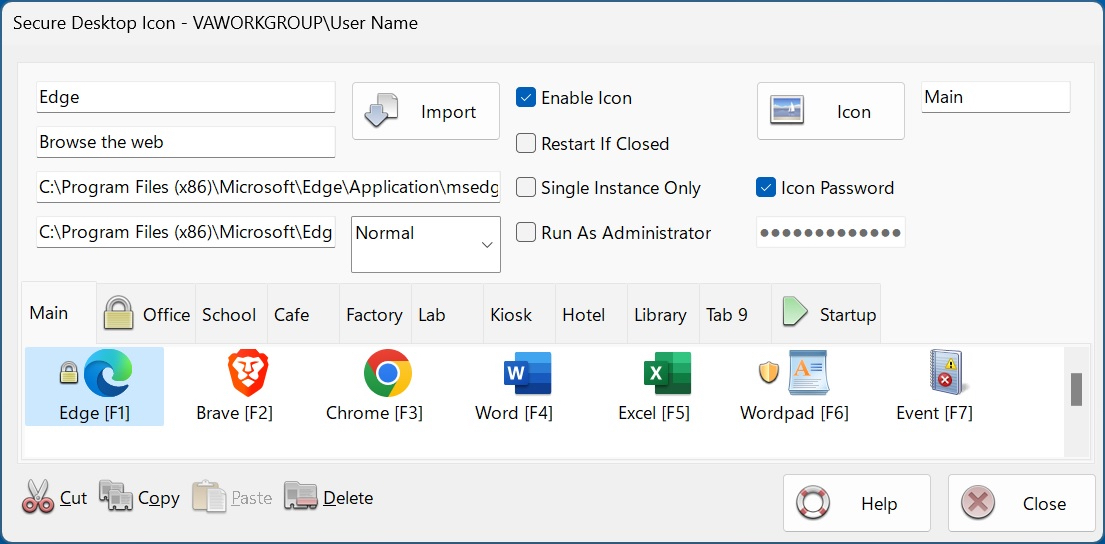
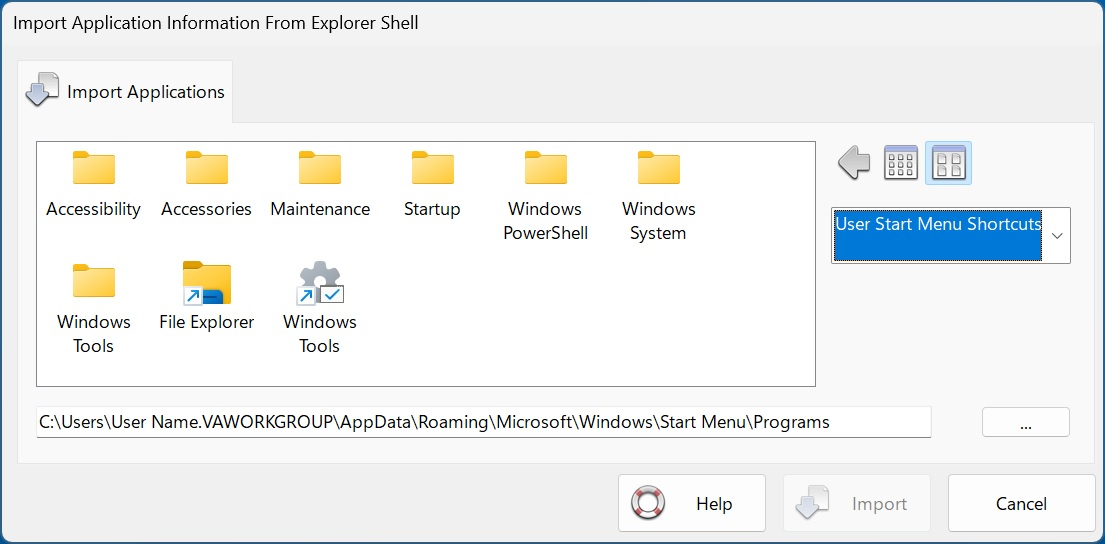
Secure Desktop Icon Configuration
Startup Tab
Secure Desktop 13 does not automatically start everything that the Explorer Shell starts. The system always starts services, regardless of what shell is running. Still, you must configure any other program you wish to auto-start in Secure Desktop's Startup Tab (not visible to the user). There are several advantages to this when Secure Desktop 13 is running as the shell:
- Unknown applications will not automatically start from the registry, unless configured in Autostart tab
- Start Secure Desktop applications in a specific order
- You can specify a time delay for each application to ensure that one has begun before the next
Passwords
Each icon, group tab, or toolbar button may be individually password-protected. You can assign a keyboard shortcut to bring Secure Desktop 13 to the top of the Z-order, which may also be password-protected. Using the Supervisor feature, passwords can change dynamically by requiring a calculated passcode to any Secure Desktop 13 password. We base this calculation on the computer system date and a 5-digit PIN. Secure Desktop password data is stored as a hash.
Secure Desktop Shell
The Secure Desktop 13 shell is a toolbar window that spans the user's screen width - place it at the top or the bottom. Set the shell to the top or the bottom of the Z-order. Set icon mouse clicks to single or double. Change the icon background color. Function keys for the icons can be on or off. Remove the tab bar if only one tab is visible. Hide the status bar. Disable mouse clicks for the Tray Icons. System icons (Volume, Network, Power) can be displayed, although they are less secure due to the start of unknown programs.

Secure Desktop Shell
Audit
Secure Desktop 13 stores the audit data in CSV files, the Window Event Log, or both. We store the window titles and the current user name in this data.
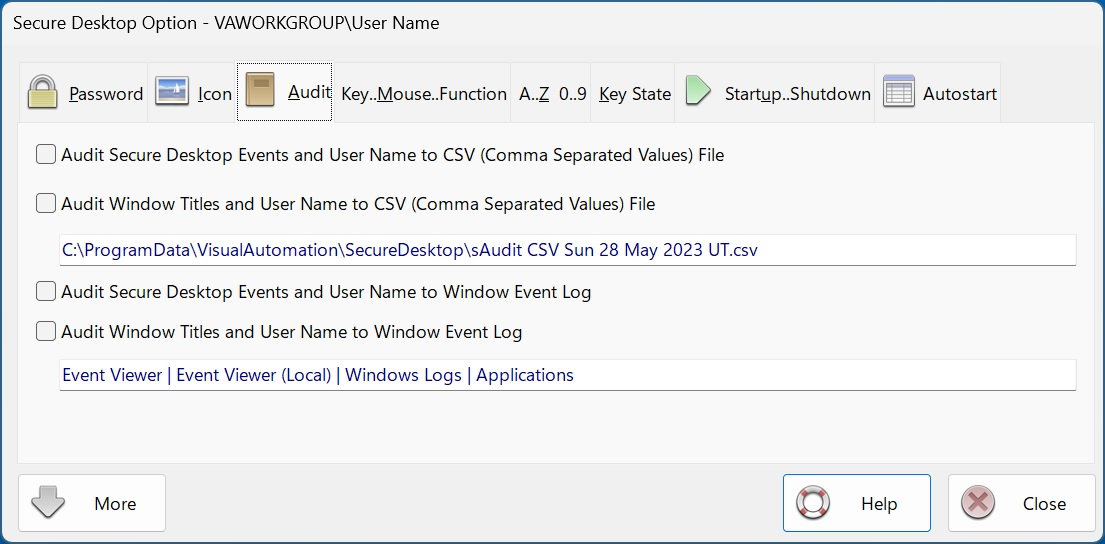
Secure Desktop Audit
Disable Keyboard Shortcuts
Secure Desktop can disable over 400 keyboard shortcuts, tuned for the specific operating system in an independent hardware fashion. Please see the sidebar for the complete list.
Disable Clipboard
This Secure Desktop feature listens to the clipboard. If the contents change, Secure Desktop clears the clipboard.
Included Utilities
View Audit data with sAudit. Show a wallpaper using sWall.
Secure Utilities 13, included with Secure Desktop 13
sExplore File Explorer. sCopy File. sMenu Start Menu. sArchive File. sNote Viewer. sImage Viewer. sCSV Viewer. sZIP Viewer. sKeyboard On-Screen Keyboard. sRun Program. sControl Panel. sEject Device. sRes Resolution. sLock Workstation. Logon, Drive Hiding, Touch/Pen Disabling, and Auto Logoff registry settings.
Window Wizard
The Window Wizard can manipulate a window. Secure Desktop 13 identifies windows by title, class name, or min/max buttons. Then, we act on the window to hide it, force it to min or max state, close it, or disable menu items for windows with the older style. Send Alt + N (No button) and other keyboard shortcuts to a message window.
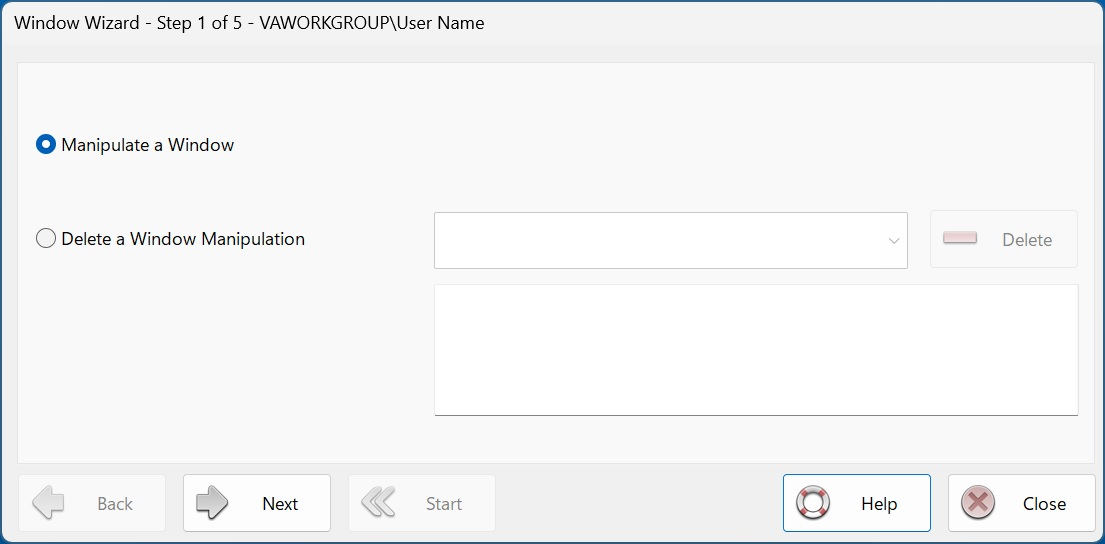
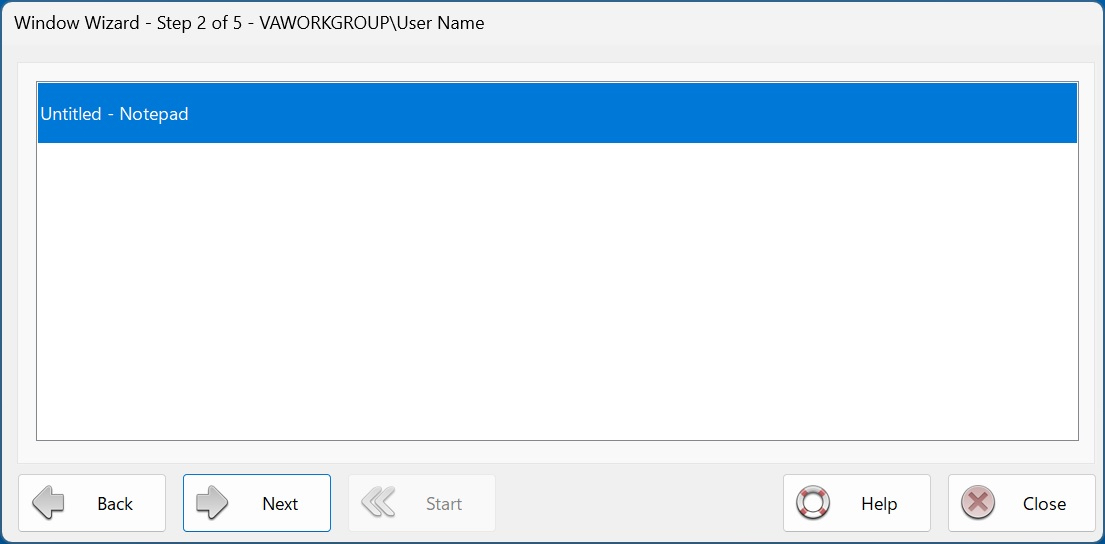
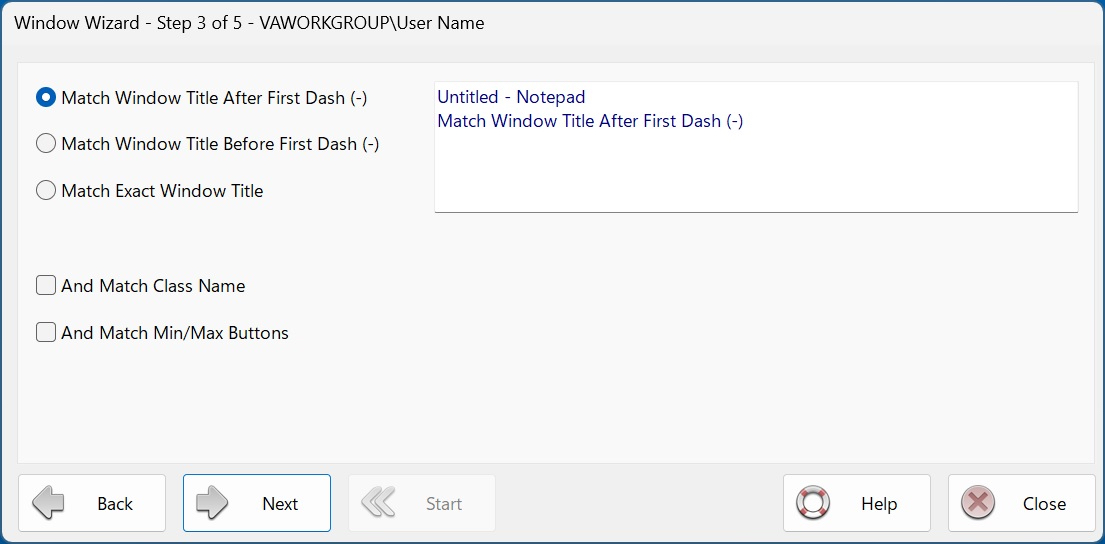
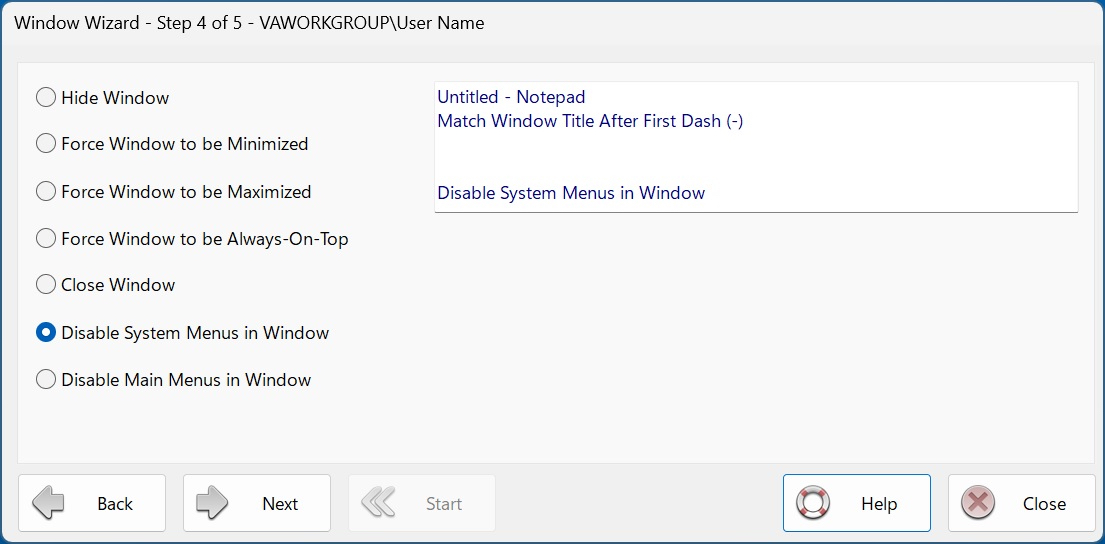
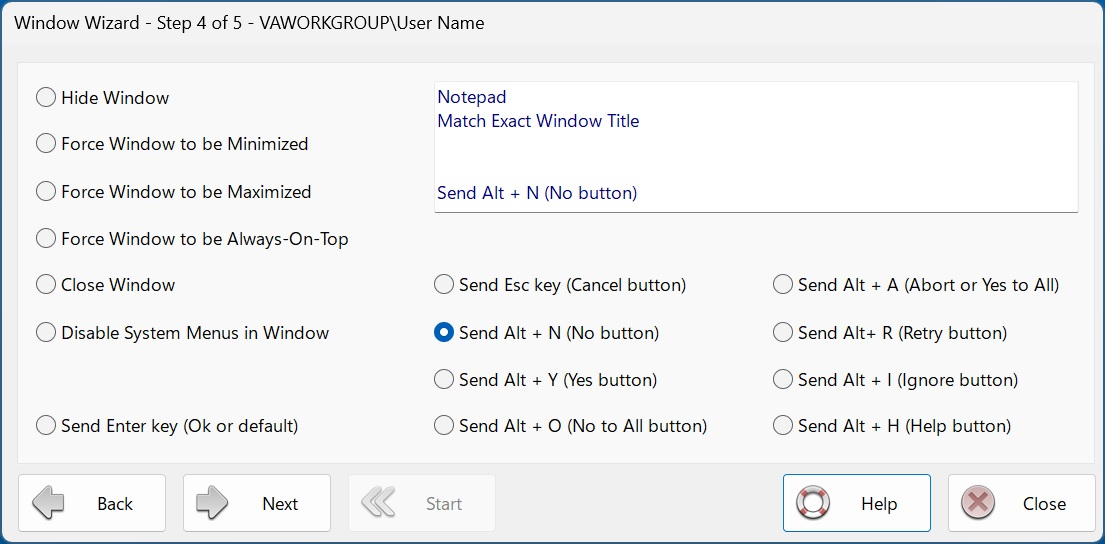
Secure Desktop Window Wizard
File Access and File Open, Browse and Save As Dialogs
Disable part of the standard user interface for File Open, Browse, or Save As Dialogs.
The File Open, Browse, or Save As Dialogs are mini versions of File Explorer. Secure Desktop can disable relevant mouse clicks and keyboard shortcuts while the dialog is on top, preventing unwanted file editing or manipulation. We provide a similar feature for the Print Dialog.
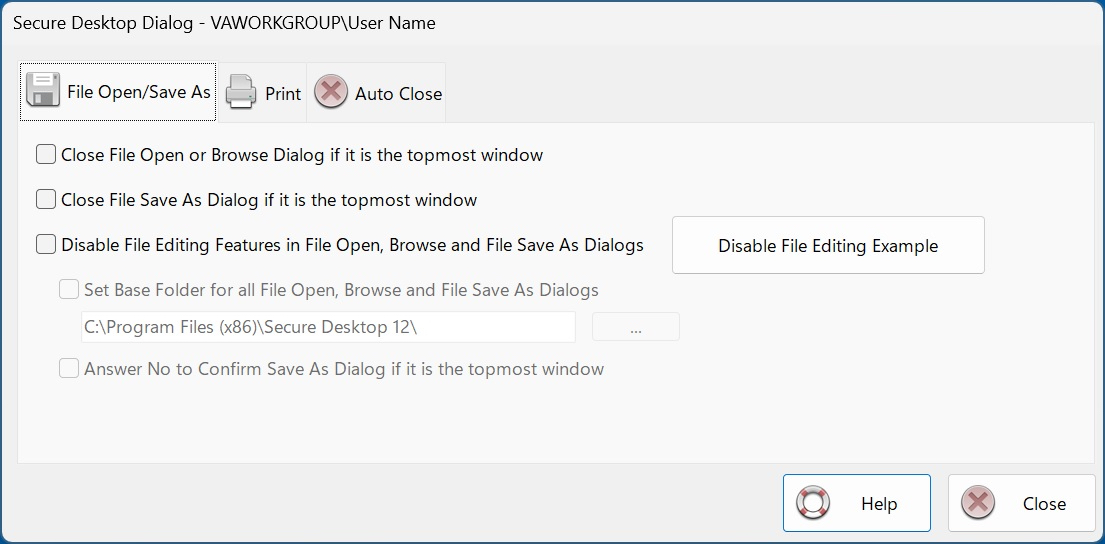
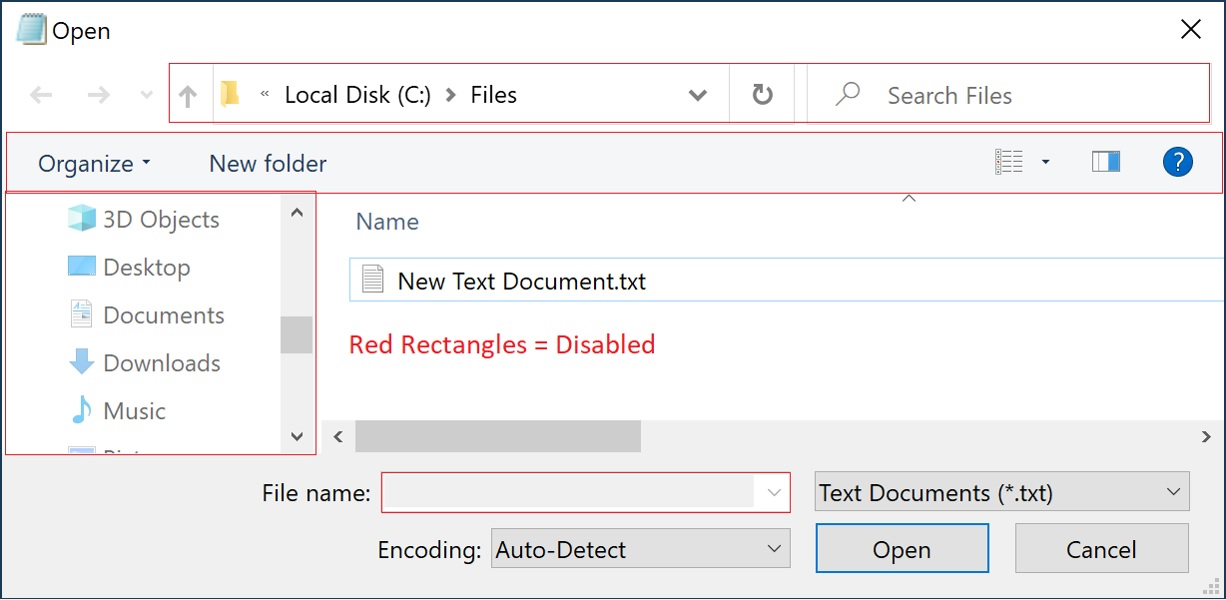
Secure Desktop Dialog Features
System Features
Secure Desktop 13 can close applications immediately by specific window class names.
We include applications used by administrators, the registry editor, Settings in Windows 11, console windows, file explorer, control panel, task manager, and the mobility center.
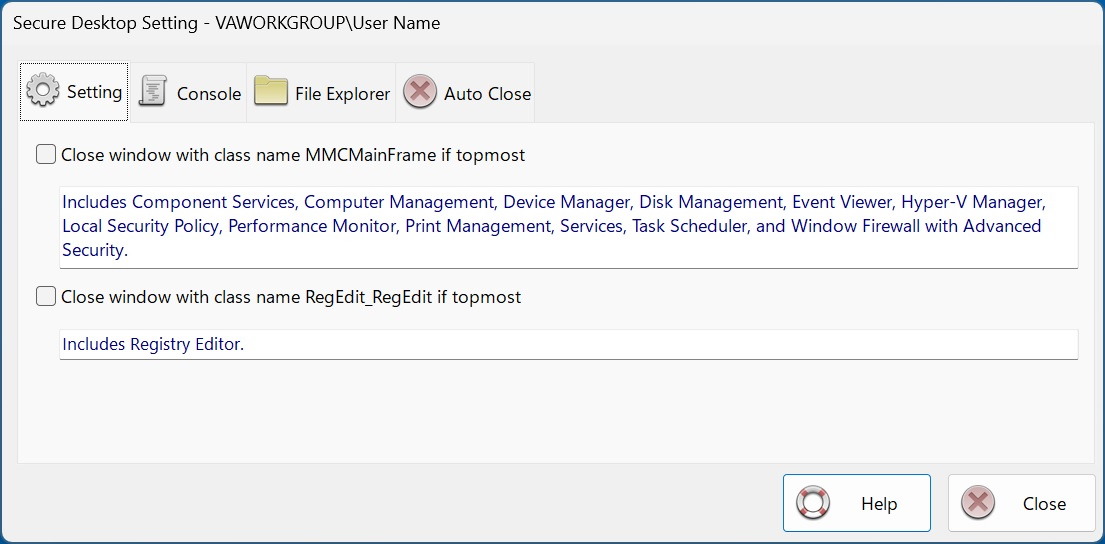
Secure Desktop Setting Features
Windows Win32 Application Launching
Most Visual Automation customers use Secure Desktop in mission-critical settings such as manufacturing, the pharmaceutical industry, or retail point of sale. When using Windows 11 in a mission-critical environment, Microsoft recommends using Windows 11 Enterprise Long-Term Servicing Channel (LTSC) Edition. This LTSC Edition does not support Universal Windows applications. Although Secure Desktop works on any Windows 11 Edition (except Windows 11S), we recommend that our customers carefully research the various Editions to ensure a stable system. Windows 11 Enterprise LTSC Edition may be the best Edition of Windows 11 for your mission-critical setting.
Our online store, Shopify, offers convenient online ordering 24 hours a day, every day.
Secure Utilities 13 Data Sheet
Secure Utilities 12 Data Sheet
Secure Utilities 11 Data Sheet
Disable Windows Keyboard Shortcuts
- ctrl-alt-delete
- alt-esc
- alt-tab
- alt-space
- alt-home
- alt-end
- alt-enter
- alt-left arrow
- alt-right arrow
- alt-up arrow
- alt-down arrow
- alt-shift-esc
- alt-shift-tab
- alt-shift-space
- ctrl-esc
- ctrl-tab
- ctrl-shift-tab
- ctrl-alt-esc
- ctrl-alt-shift-esc
- ctrl-page up
- ctrl-page down
- ctrl-delete
- ctrl-.
- ctrl-shift-.
- ctrl-break
- esc
- shift-esc
- windows key
- applications key
- pause
- print screen
- alt-print screen
- ctrl-print screen
- shift-print screen
- delete
- shift-delete
- up arrow
- down arrow
- num lock
- scroll lock
- caps lock
Secure Desktop Windows Keys and Mouse Buttons
Disable Mouse Buttons
- alt left mouse button
- shift left mouse button
- control left mouse button
- middle mouse button
- alt middle mouse button
- shift middle mouse button
- control middle mouse button
- right mouse button
- alt right mouse button
- shift right mouse button
- control right mouse button
- x1 mouse button
- alt x1 mouse button
- shift x1 mouse button
- control x1 mouse button
- x2 mouse button
- alt x2 mouse button
- shift x2 mouse button
- control x2 mouse button
Disable Function Keys
- F1-F12
- alt F1-F12
- alt-shift F1-F12
- shift F1-F12
- ctrl F1-F12
- ctrl-shift F1-F12
- ctrl-alt F1-F12
- ctrl-alt-shift F1-F12
Secure Desktop Function Keys
Disable Letter Hot-Keys
- alt a-z
- alt-shift a-z
- ctrl a-z
- ctrl-shift a-z
- ctrl-alt a-z
- ctrl-alt-shift a-z
Disable Number Hot-Keys
- alt 0-9
- alt-shift 0-9
- ctrl 0-9
- ctrl-shift 0-9
- ctrl-alt 0-9
- ctrl-alt-shift 0-9
- shift 0-9
- [ ] . ' = \ ; , / `
- alt [ ] . ' = \ ; , / `
- alt-shift [ ] . ' = \ ; , / `
- ctrl [ ] . ' = \ ; , / `
- ctrl-shift [ ] . ' = \ ; , / `
- ctrl-alt [ ] . ' = \ ; , / `
- ctrl-alt-shift [ ] . ' = \ ; , / `
- shift [ ] . ' = \ ; , / `
Disable Access Keys
- stickykeys (shift key 5 times)
- filterkeys (hold down right shift key for 8 seconds)
- togglekeys (hold down num lock key for 5 seconds)
- high contrast (alt-left shift-print screen)
- mousekeys (alt-left shift-num lock)